Download the complete Getting Started guide (PDF)
Begin setup
Setup helps Tarbiyah use your family's location and preferences.
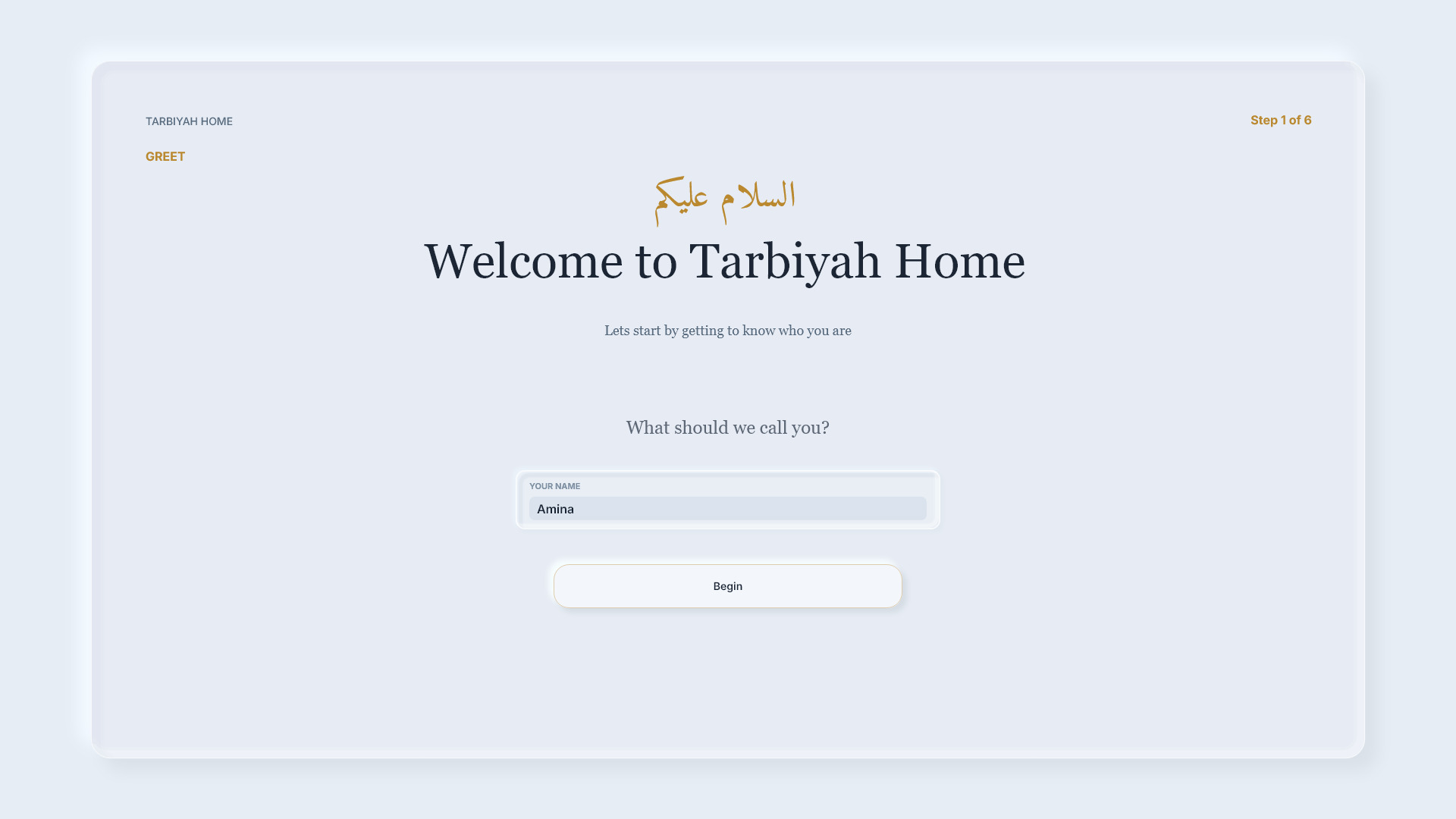
Steps: Have your name, a device name, prayer location and preferred prayer settings ready. The device may prepare content before showing the welcome screen. Enter your name, then choose Begin. This example uses Amina. Use your own family details throughout setup.
Name this device
Give this device a name you will recognize.
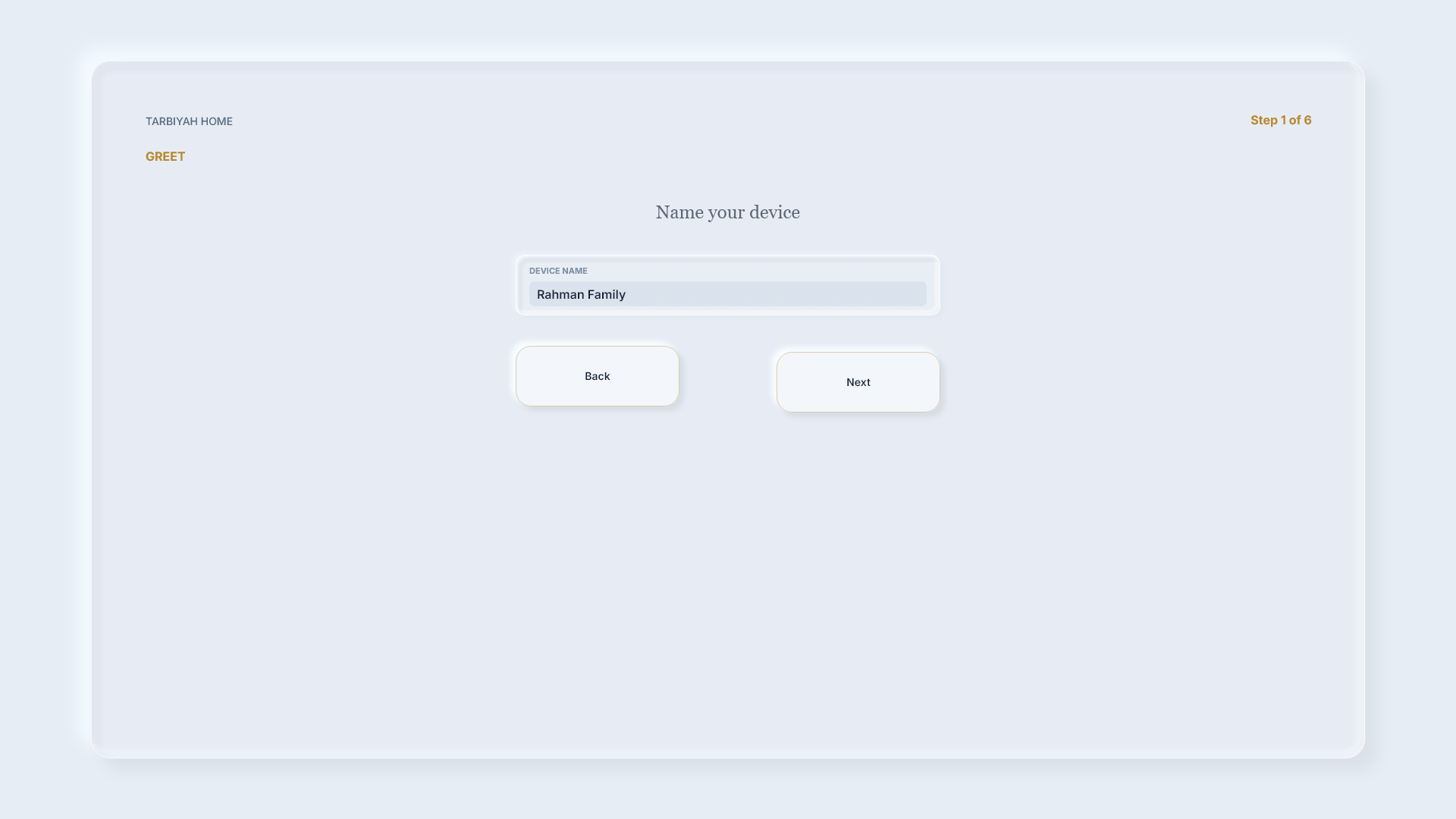
Steps: Enter a device name you will recognize, then choose Next. This example uses Rahman Family.
Check the connection
Check the connection before continuing.
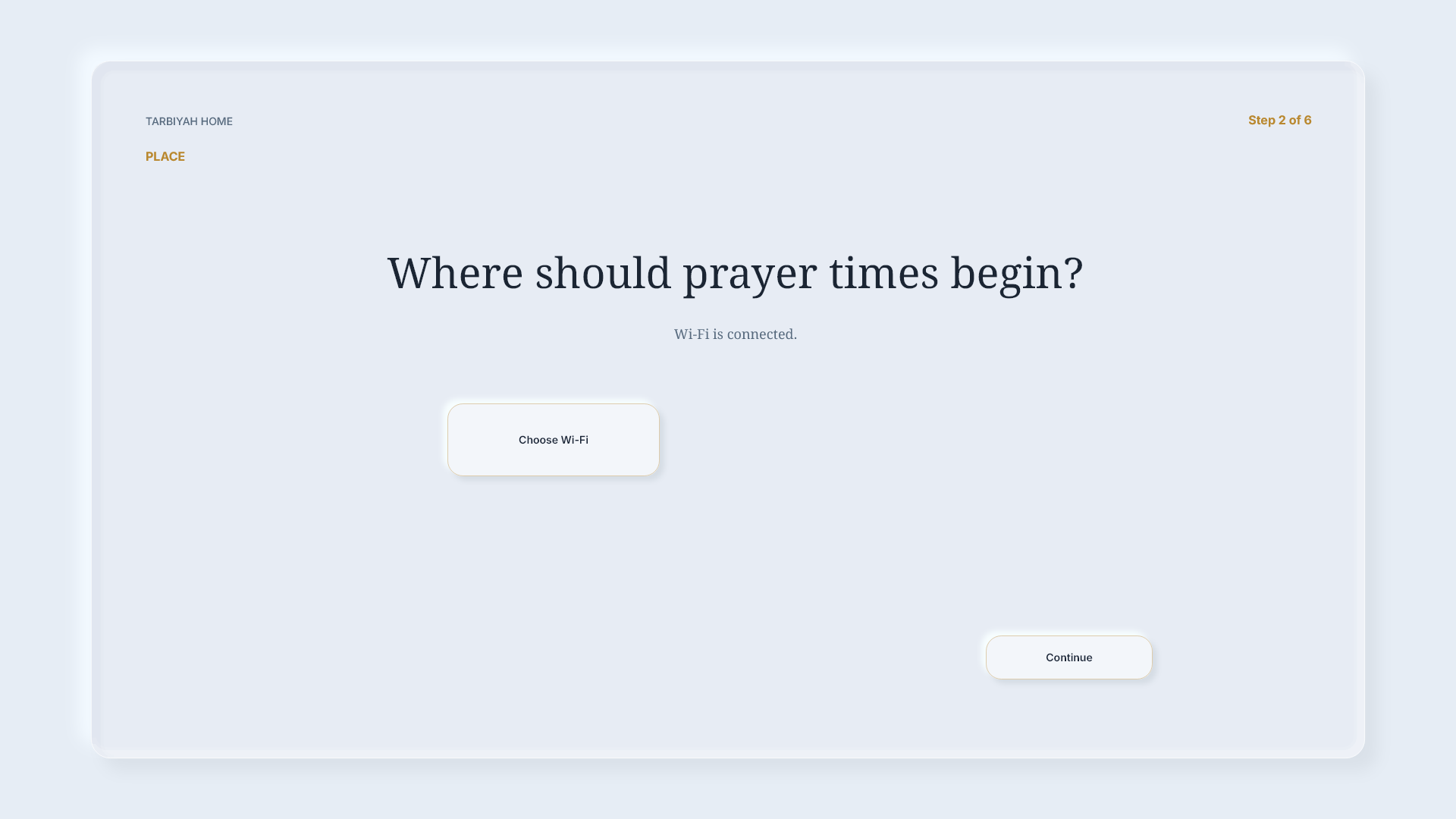
Steps: Follow the network screen. Choose Wi-Fi opens the device network setup. Use Check again when offered, then Continue once the connection is accepted.
Set the prayer location
Set the place used for your family's prayer times.
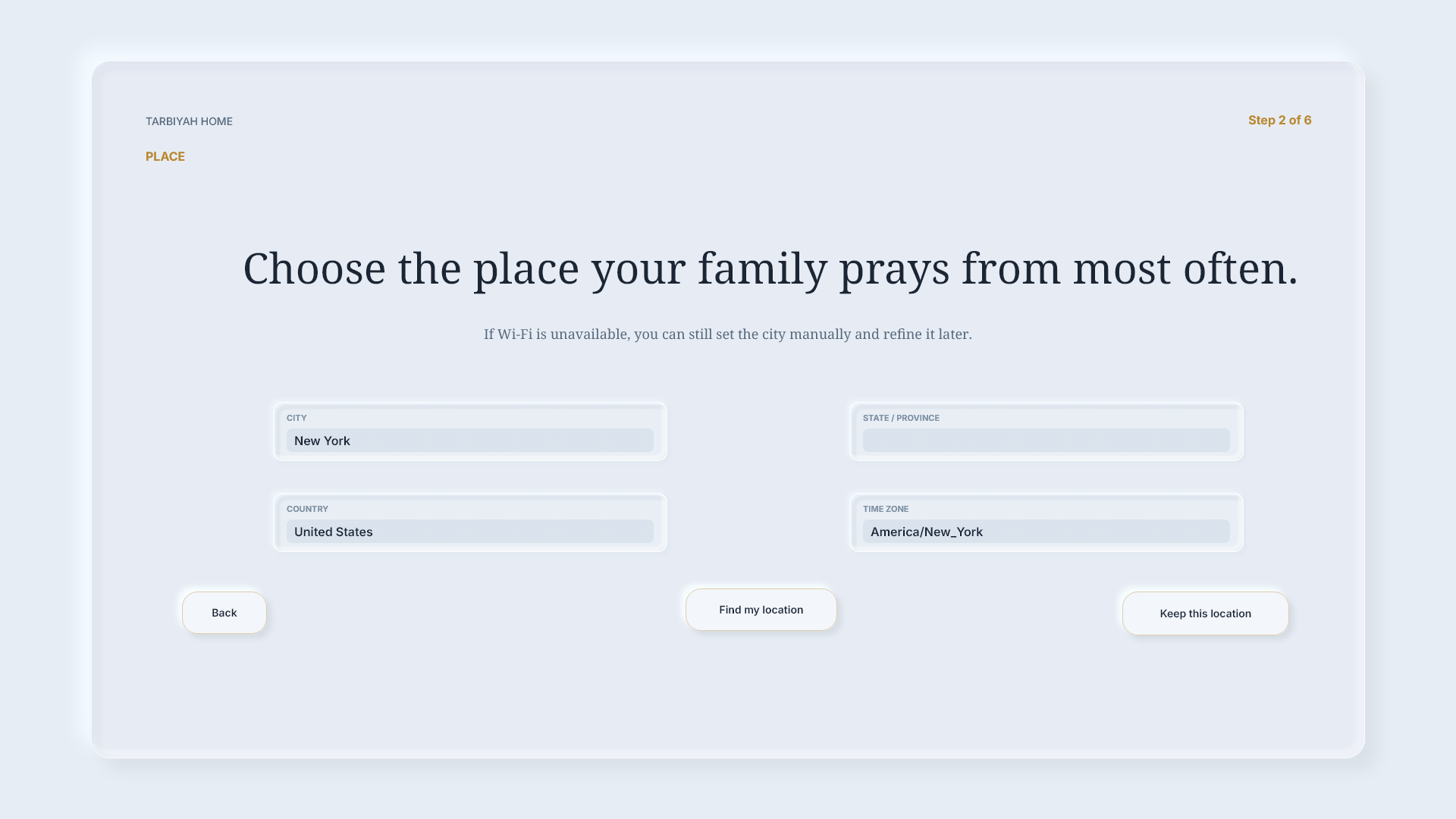
Steps: Check City, Country, State / Province where needed, and Time zone. This example uses New York, United States and America/New_York. Check the result before choosing Keep this location. Find my location is an alternative when it returns a usable result.
Review prayer preferences
Check the prayer settings your family follows.
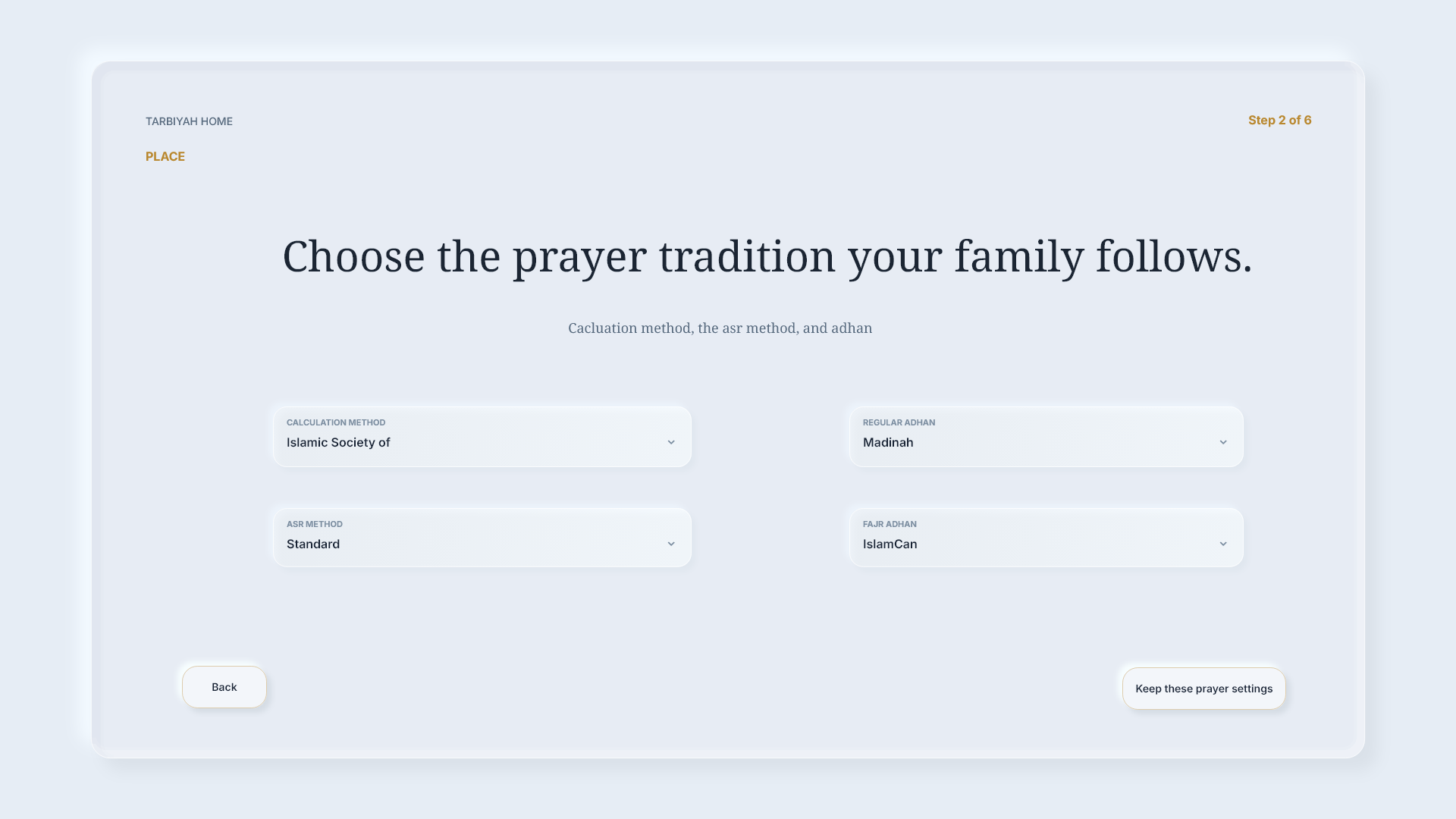
Steps: Review Calculation method, Asr method, Regular adhan and Fajr adhan. Choose the settings your family follows, then Keep these prayer settings.
Choose the Home look
Choose how you want Home to look.
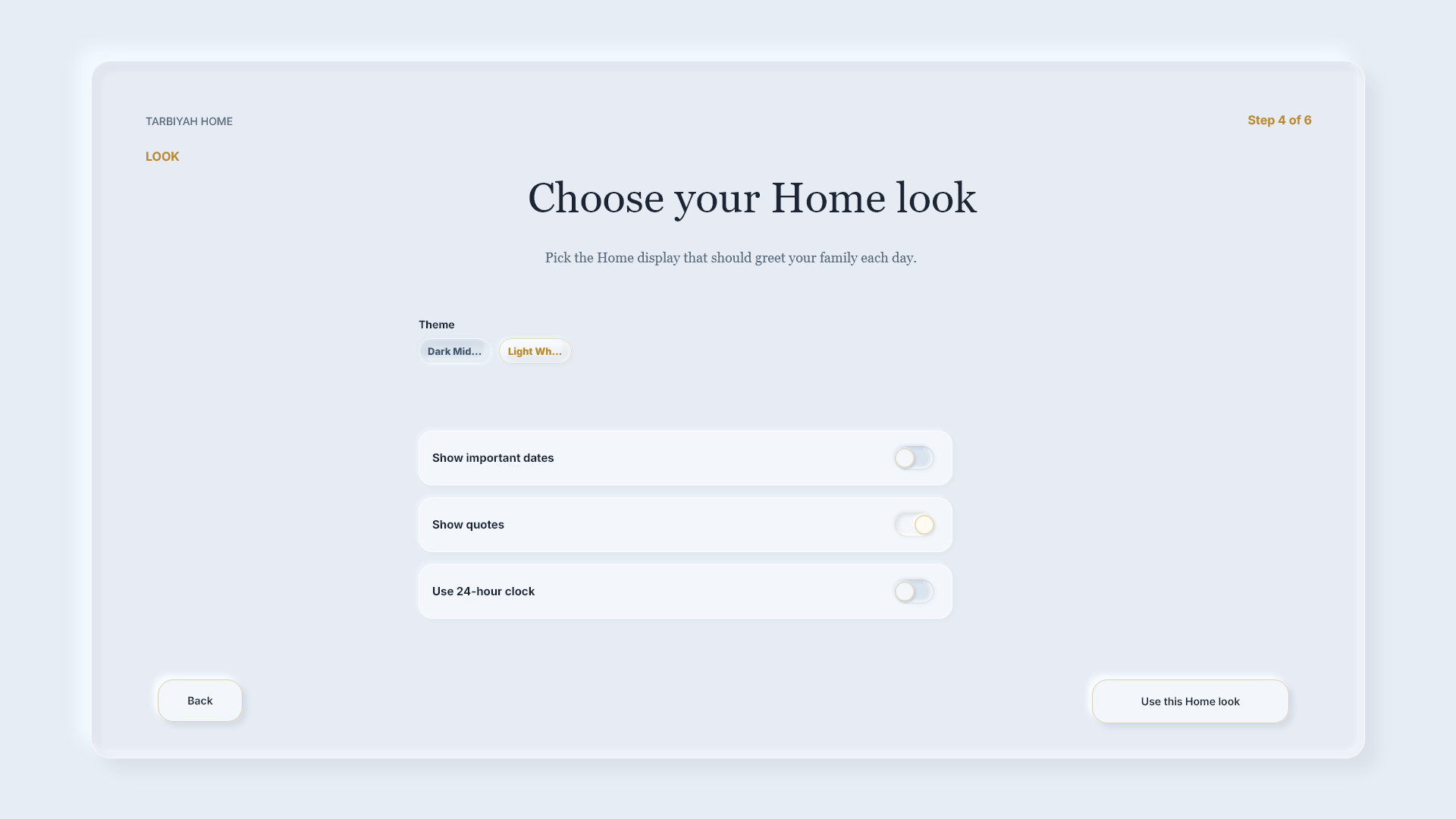
Steps: Review Theme, Show important dates, Show quotes and Use 24-hour clock. This example uses the light appearance, quotes on, important dates off and a 12-hour clock. Choose Use this Home look.
Choose routine focus
Choose the routines you want to focus on.
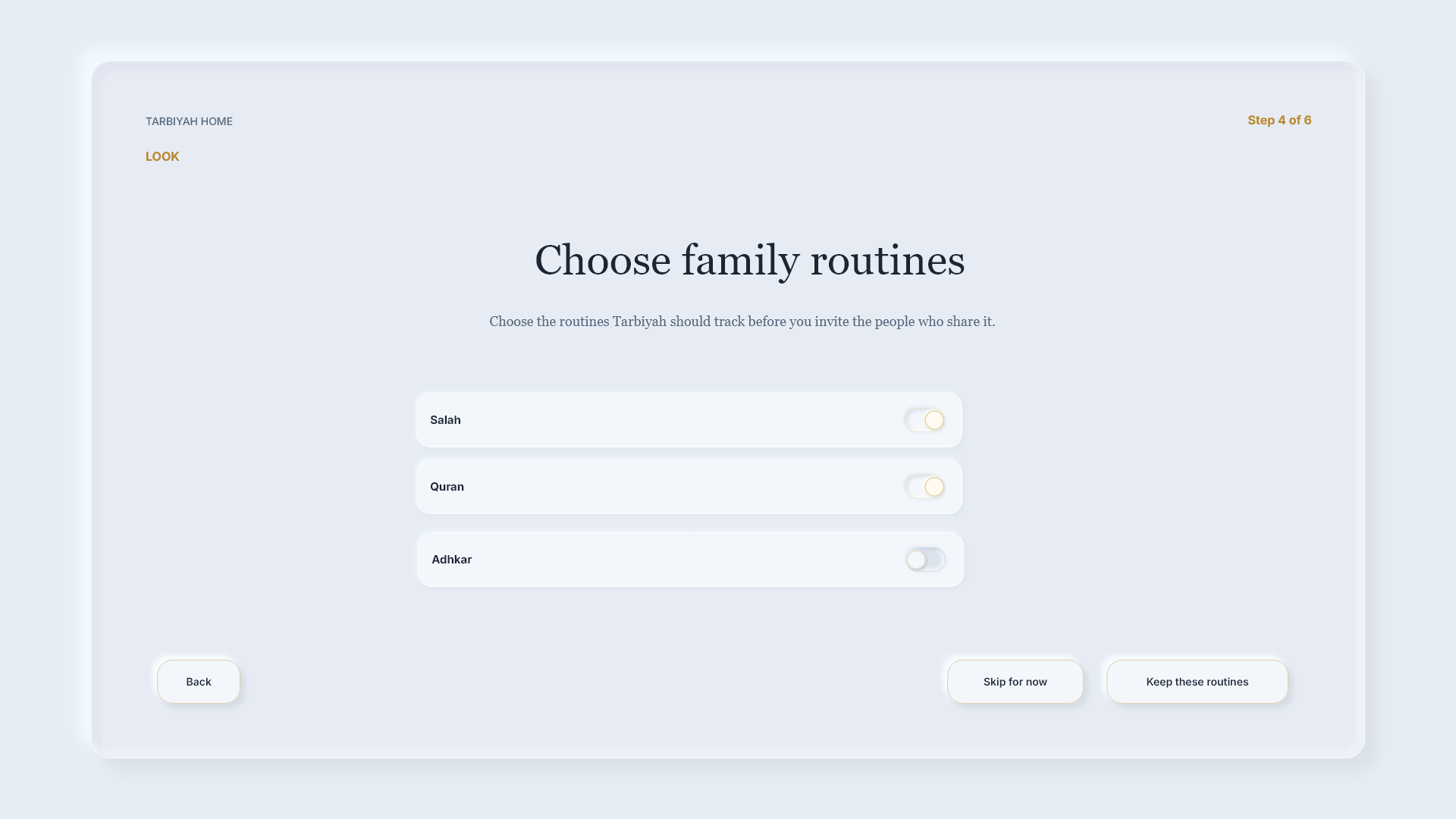
Steps: Choose Salah, Quran or Adhkar, then Keep these routines. This example selects Salah and Quran. You can choose Skip for now; unselected apps remain available.
Review Quran goals
If you chose Quran, review the reading goals offered.
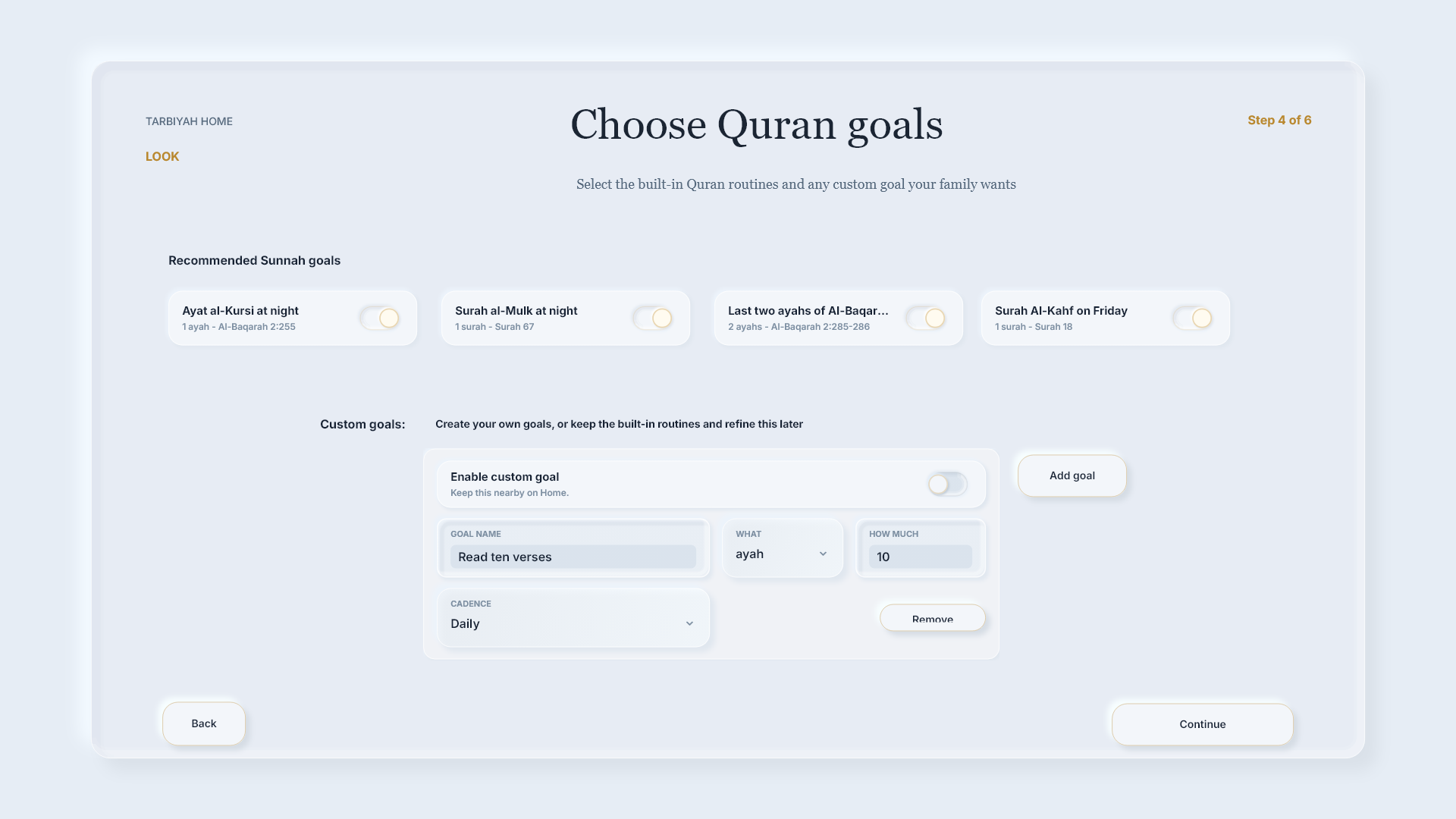
Steps: This step appears when Quran is selected. Review the built-in Quran routines, then choose Continue. See the Quran planning lessons for detailed goal creation.
Add your household
Add the people who will use your family device.
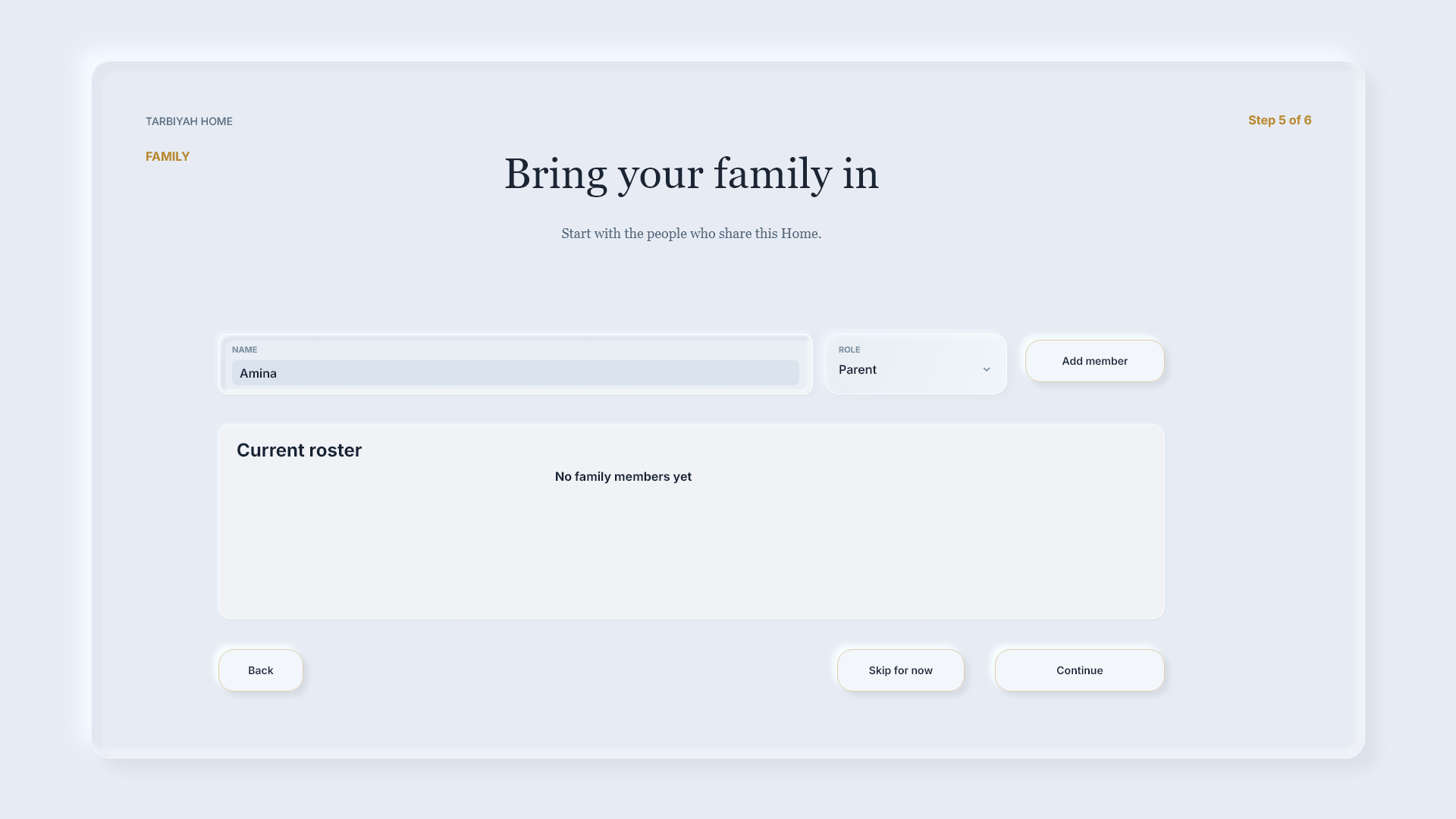
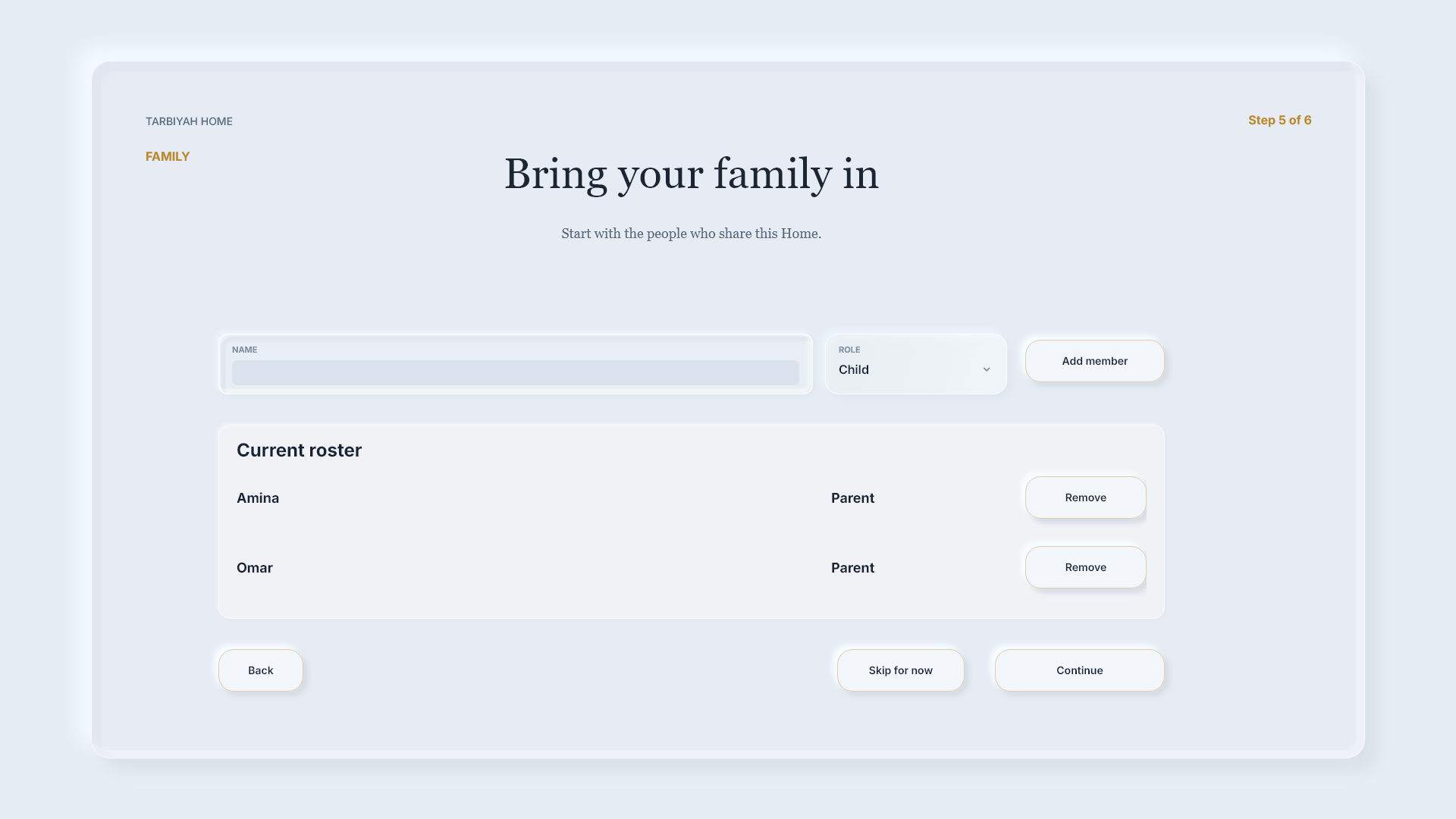
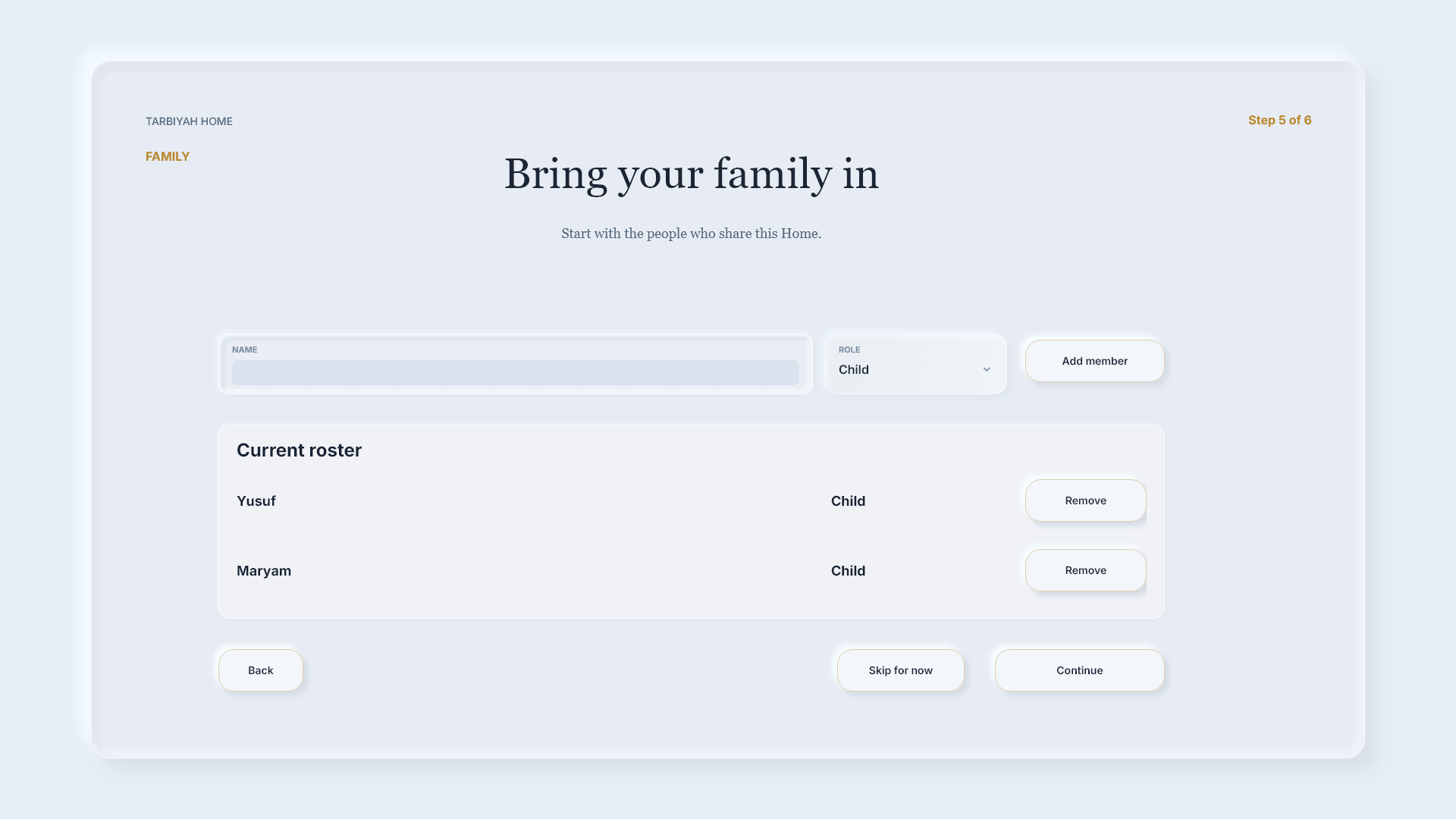
Steps: Enter a Name, choose a Role, then Add member. Repeat for each person and check the roster before choosing Continue. This example adds Amina and Omar as parents, and Yusuf and Maryam as children. Skip for now is available if you are not adding members yet.
Open Home
Choose Open Home when setup is ready.
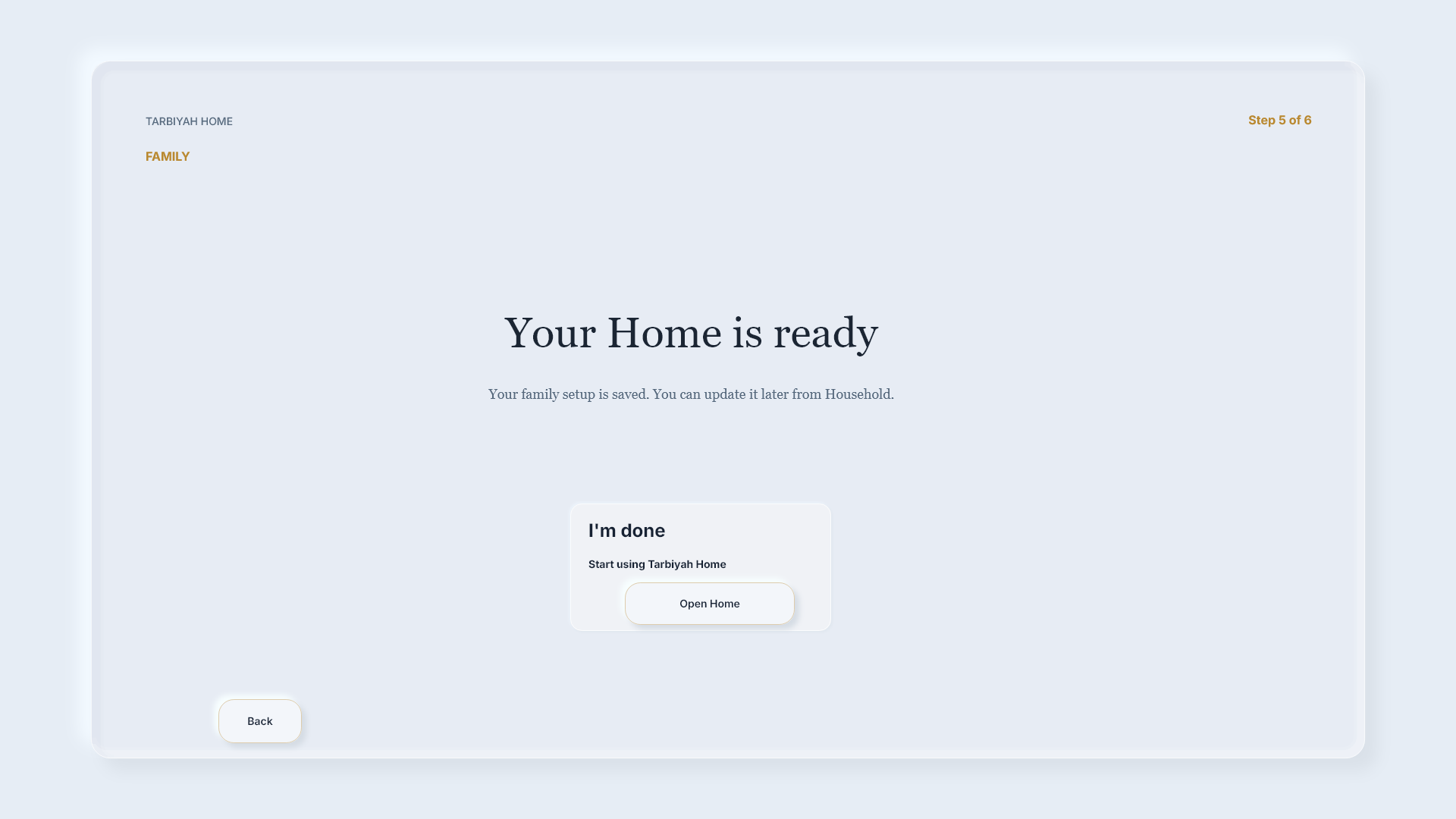
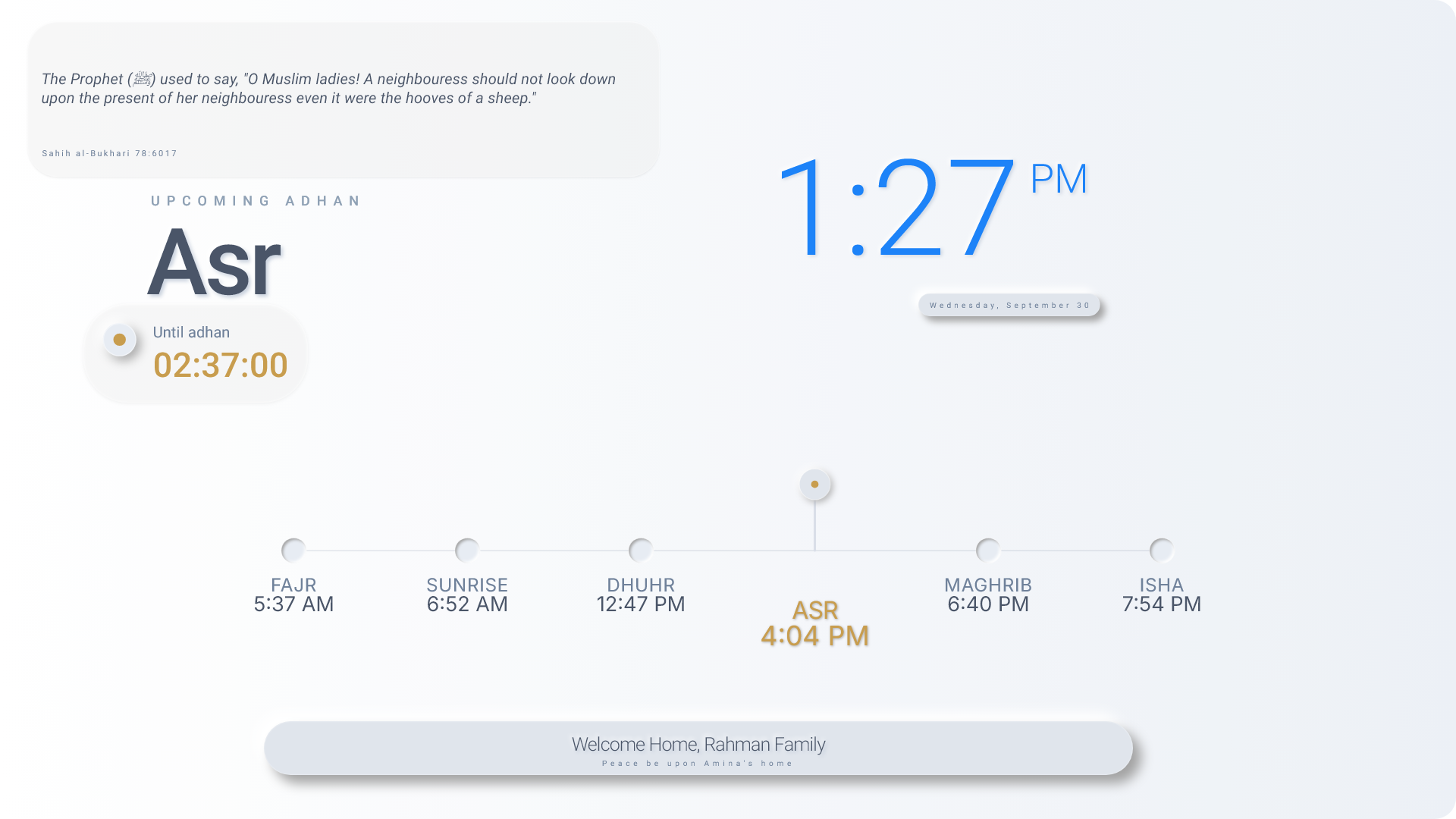
Steps: At Your Home is ready, choose Open Home. Wait for Home to appear.
Home lessons: orientation, opening apps, controls and personalization